

Connect this client to the VMS MCP server.
Before you start
- You need an account and membership in the workspace that you want to use.
- Your client must support remote MCP with OAuth. See other clients.
- The MCP server URL is
https://vms.dev/api/mcp.
Connect a client
- Claude
- Claude Code
- Cursor
- Visual Studio Code
1
Add the connector
In Claude, open Settings, then Connectors, and choose Add custom connector.
2
Enter the server
Name it
VMS and enter the MCP endpoint as the URL. Leave the OAuth fields empty.3
Sign in and allow access
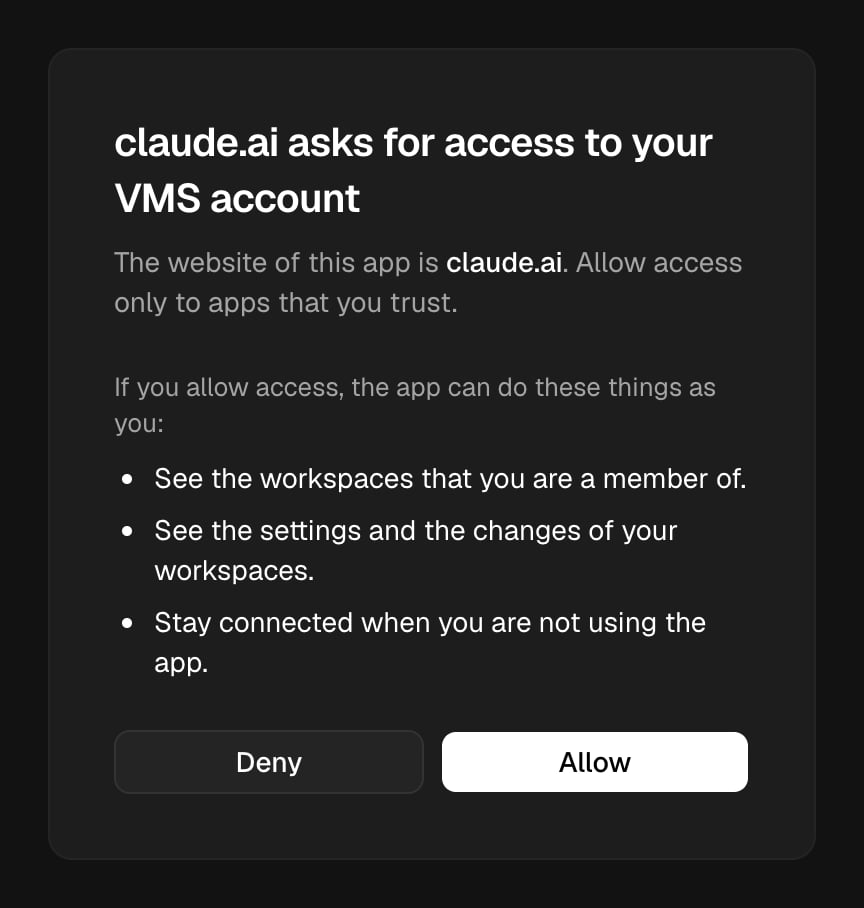
Choose Connect. In the browser, sign in, read the access that the client asks for, and choose Allow.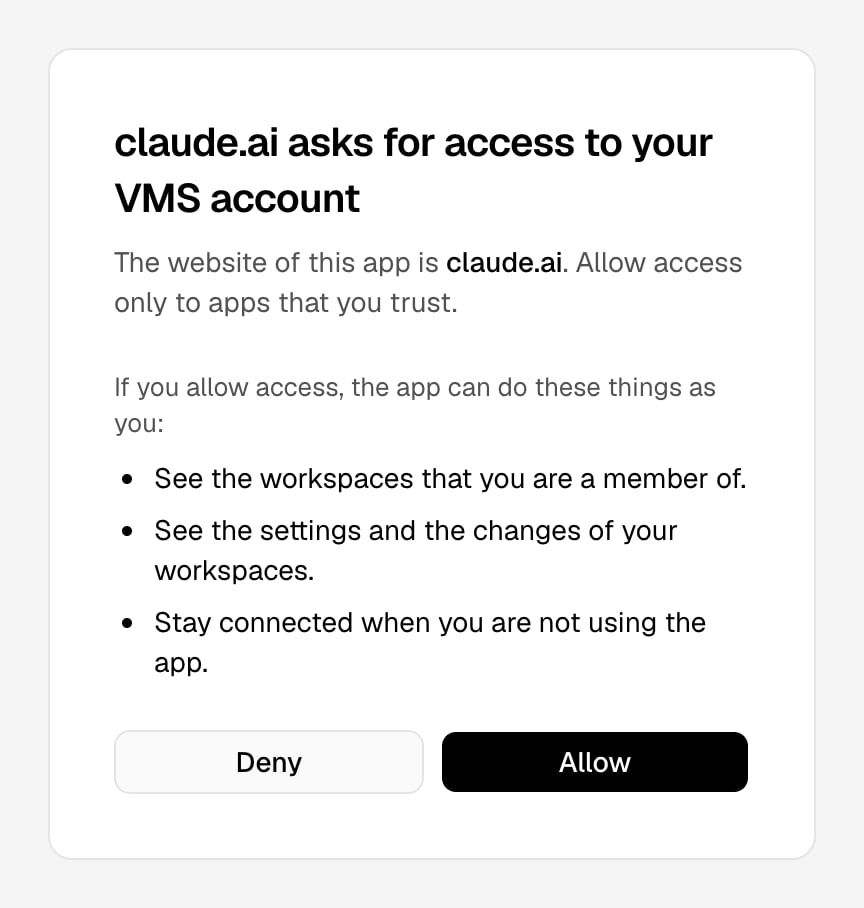
Check the connection
- Ask the client to call
list_organizations. - Choose a workspace from the result. Use its slug as the
organizationvalue in later tool calls. - Ask the client to call
get_workspacefor that workspace.