

Before you start
- Each role (Owner, Admin, and Member) can see, fork, stop, resume, and delete the sandboxes of the workspace, save them as templates, open their desktops, and read their snapshots.
- You create sandboxes with the API. See Create, get, and delete a sandbox.
Find a sandbox
In the sidebar, under VMS, choose Sandboxes. The table shows the Name, the State, the Size, and the Last change of each sandbox. A sandbox with no name shows its ID.- To find a sandbox, type its name, its ID, or a label in Search sandboxes.
- To show only the sandboxes in a state, such as Running or Stopped, use the State filter.
- To sort the table, choose a column header.
- To show the Labels and Created columns, choose the gear at the right of the table.
- The table shows the newest 100 sandboxes. To show older sandboxes, choose Load more sandboxes.
See the details of a sandbox
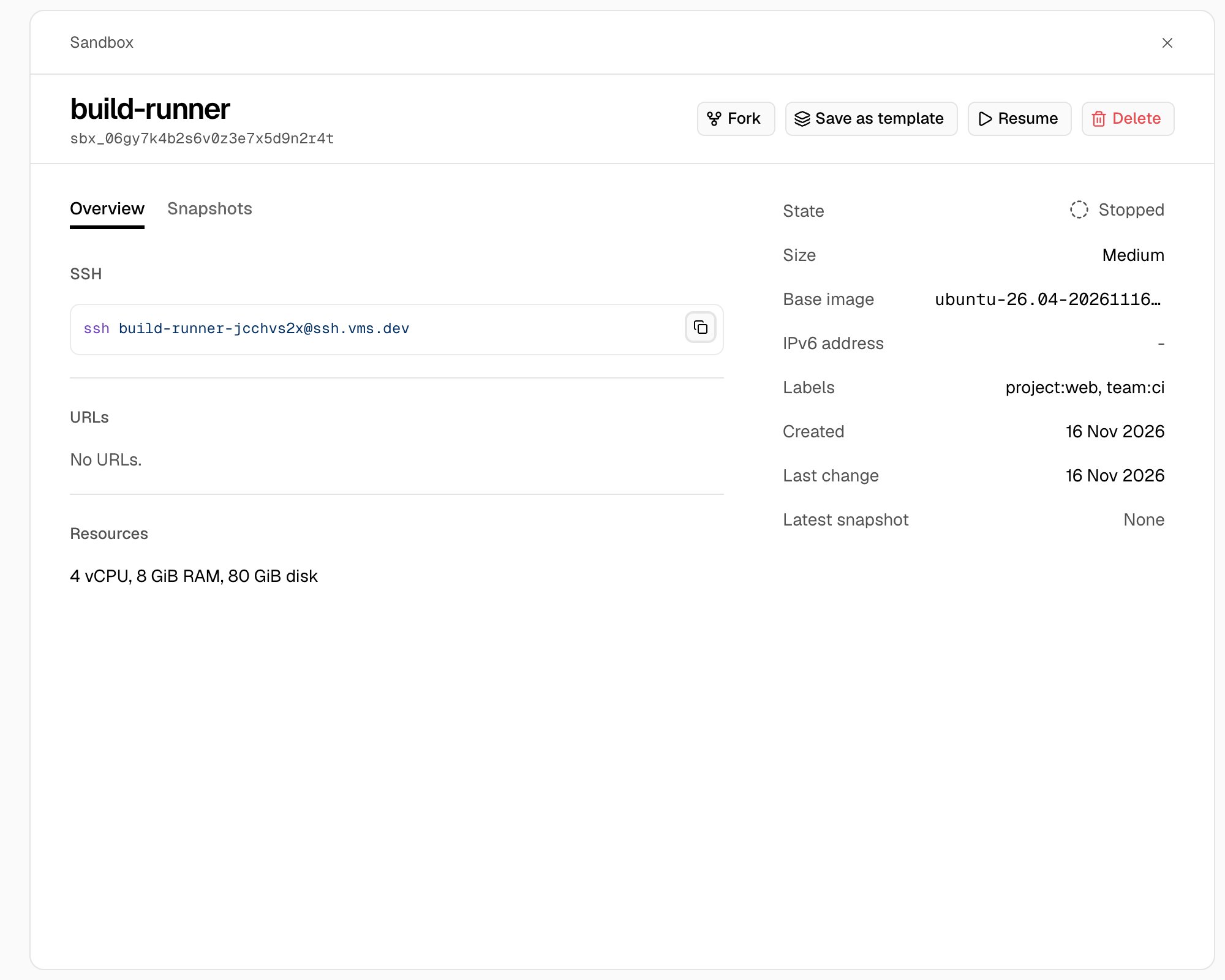
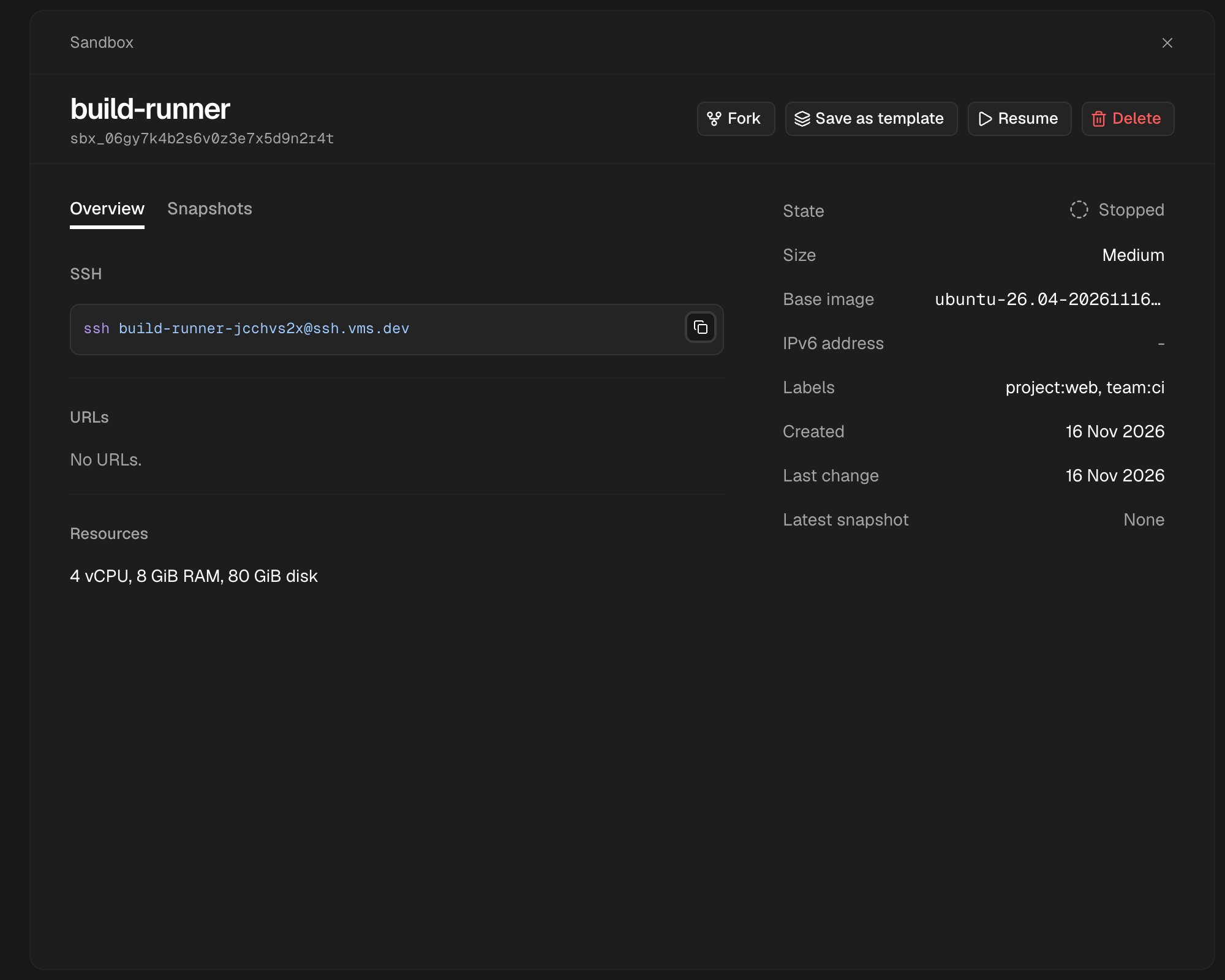
Choose the row of the sandbox, or open its menu (…) and choose View details. A wide sheet opens. Its top shows the name and the ID of the sandbox, and the actions that the sandbox can do now: Open desktop, Fork, Save as template, Stop or Resume, and Delete. On a small screen, the actions are in the menu (…) at the top. The column at the right of the sheet shows the facts of the sandbox. On a small screen, the facts are below the tabs.
The Overview tab shows:
The Snapshots tab shows the saved files of the sandbox. See Browse the files of a snapshot.
The URL holds the open sandbox and its tab. A reload keeps them, and you can send the link to a member of your workspace. To close the sheet, choose the close button, press Escape, or go back in the browser.
Fork a sandbox
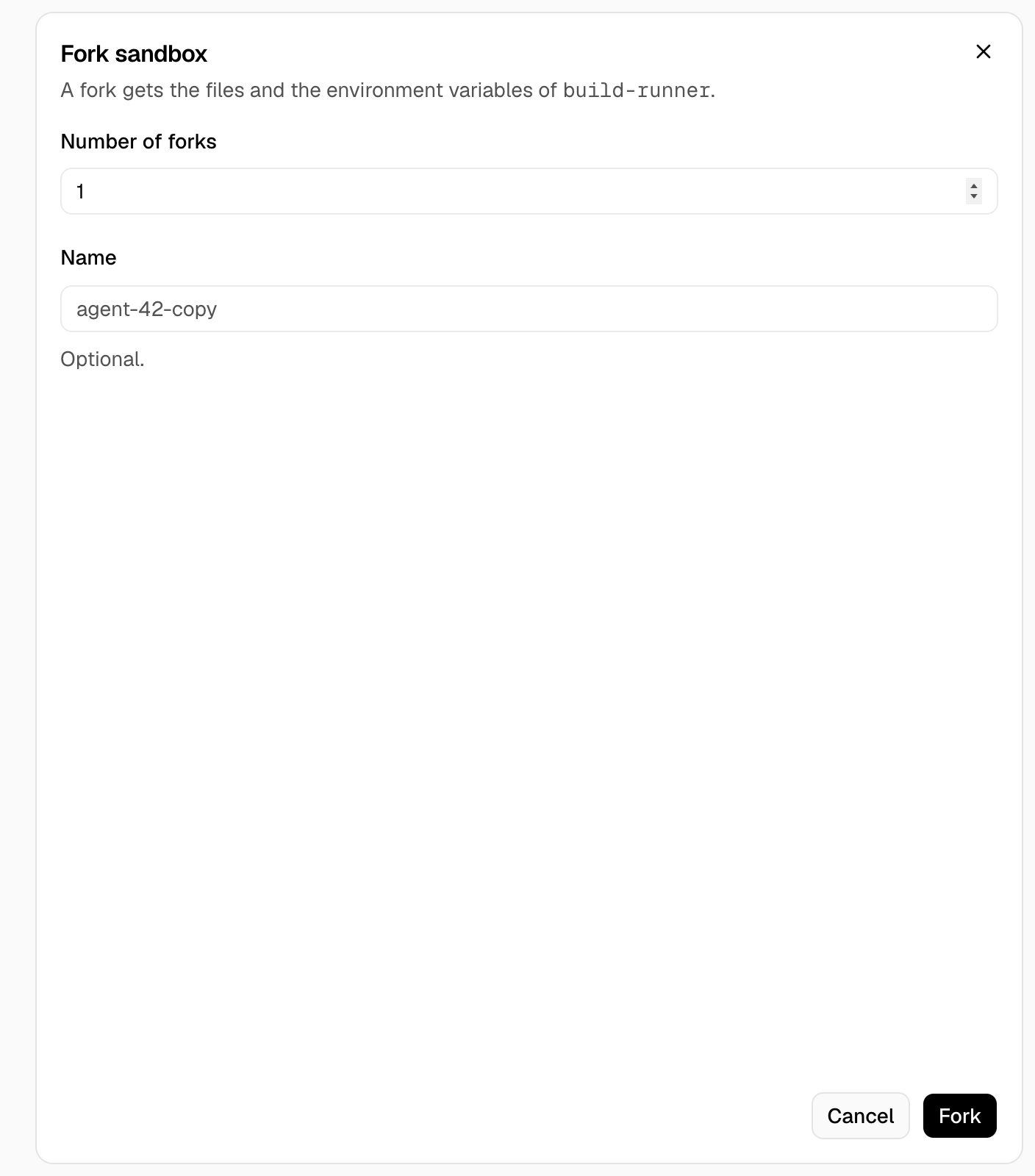
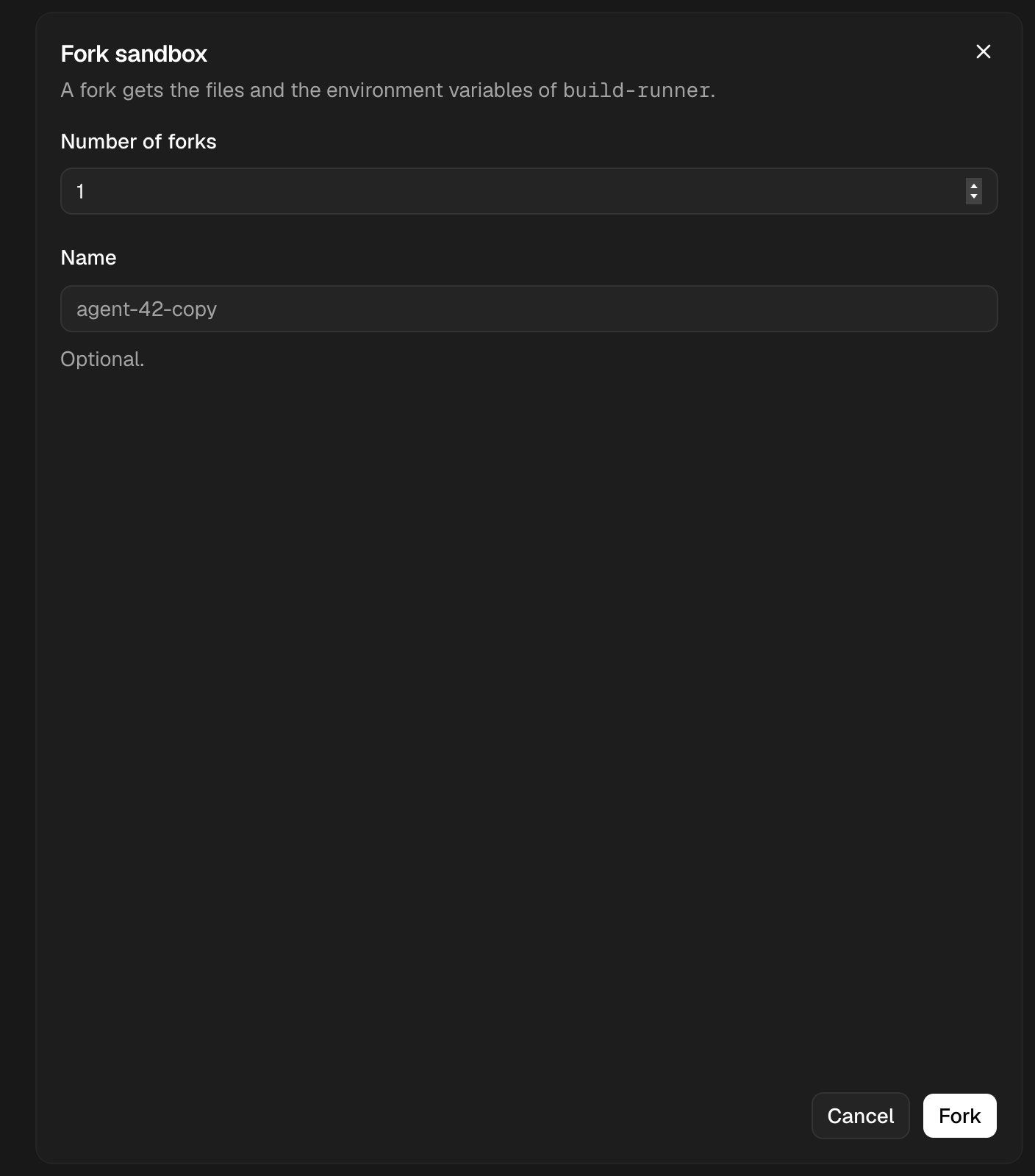
You can fork a running or stopped sandbox. See Fork a sandbox.- Open the menu (…) of the row, or open the sandbox, and choose Fork.
- In Number of forks, type a number from 1 to 100.
- Optional: for one fork, type a Name.
- For a running sandbox, keep Take a new snapshot first to give the fork the latest files. Clear it to start the fork from the last snapshot.
- Choose Fork.
Save a sandbox as a template
You can save a running or stopped sandbox. See Save a sandbox as a template.- Open the menu (…) of the row, or open the sandbox, and choose Save as template.
- Type a Name: lowercase letters, digits, and hyphens.
- Choose Save template.
Open the desktop
For a running sandbox, open the menu (…) of the row, or open the sandbox, and choose Open desktop. The desktop opens in a new tab. See See the desktop of a sandbox.Browse the files of a snapshot
For a sandbox with a snapshot, open the menu (…) of the row and choose Browse snapshots. Or open the sandbox and choose the Snapshots tab. The tab shows the saved files of the newest snapshot. A stopped sandbox does not have to start. See Read the files of a snapshot.- To see an older snapshot, choose its date and time in the menu at the top of the tab.
- To open a folder, choose its row. To go back up, choose a folder in the path above the table, or go back in the browser.
- To find a file or a folder in the open folder, type its name in Search this folder.
- The table shows the folders first, then the files. It shows the Name, the Size, and the Modified time of each file and folder. To show the Mode column, choose the gear at the right of the table.
- To download a file, or a folder as a tar file, open the menu (…) of its row and choose Download.
- To download the open folder as a tar file, choose Download folder.
- To download all files of the snapshot as a tar file, choose Download all.
- A new snapshot shows in the menu by itself, with no page reload.
https://vms.dev/acme/sandboxes/sbx_.../snapshots, opens the Snapshots tab of its sheet.
Stop, resume, or delete a sandbox
Open the menu (…) of the row, or open the sandbox and use the actions at the top of its sheet:- Choose Stop to stop a running sandbox. See Stop and resume a sandbox.
- Choose Resume to start a stopped sandbox again.
- Choose Delete, then Delete sandbox. This deletes the sandbox and its saved files. You cannot undo this.
Stop, resume, or delete many sandboxes
- Select the checkbox of each sandbox.
- Choose Actions.
- Choose Stop, Resume, or Delete.