

Before you start
- Each role (Owner, Admin, and Member) can see, rename, share, and delete the templates of the workspace, and create sandboxes from them.
- To save a template, open a sandbox on the Sandboxes page and choose Save as template. See Save a sandbox as a template.
Find a template
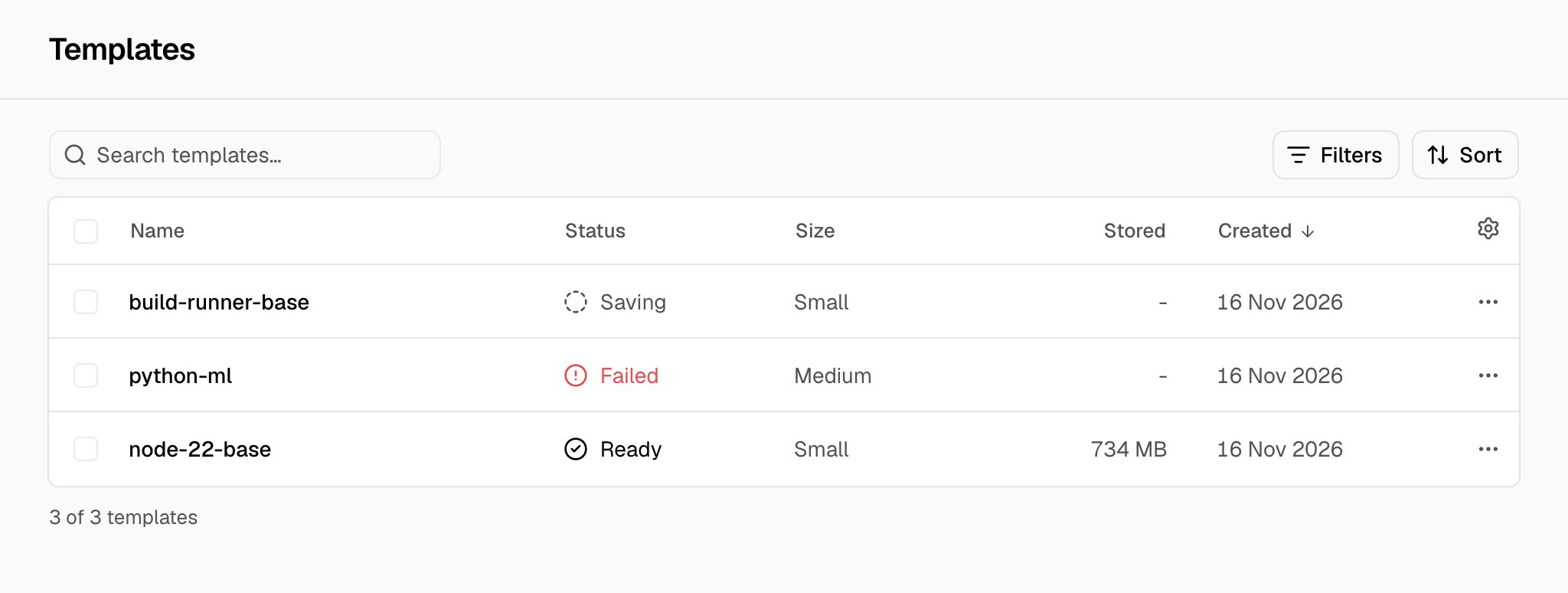
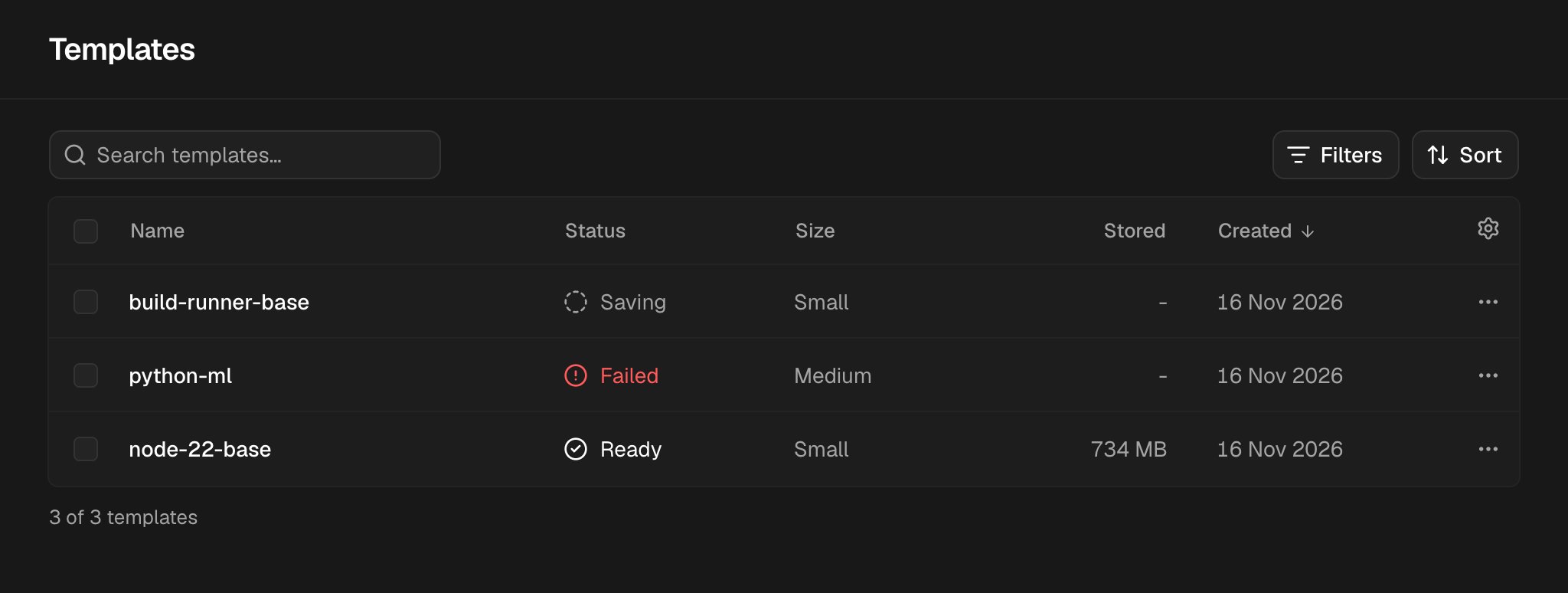
In the sidebar, under VMS, choose Templates. The table shows the Name, the Status, the Size, the Stored size, and the Created date of each template.- Saving shows while the template takes a snapshot of its sandbox. Ready shows when you can create sandboxes from it. Failed shows when the save did not complete. The sheet of a failed template shows why.
- The Size is the size of the sandbox at the save. The Stored size is the compressed size of the files.
- To find a template, type its name or its ID in Search templates.
- To show only the templates with a status, use the Status filter.
- To sort the table, choose a column header.
- To show the Ready column, choose the gear at the right of the table.
See the details of a template
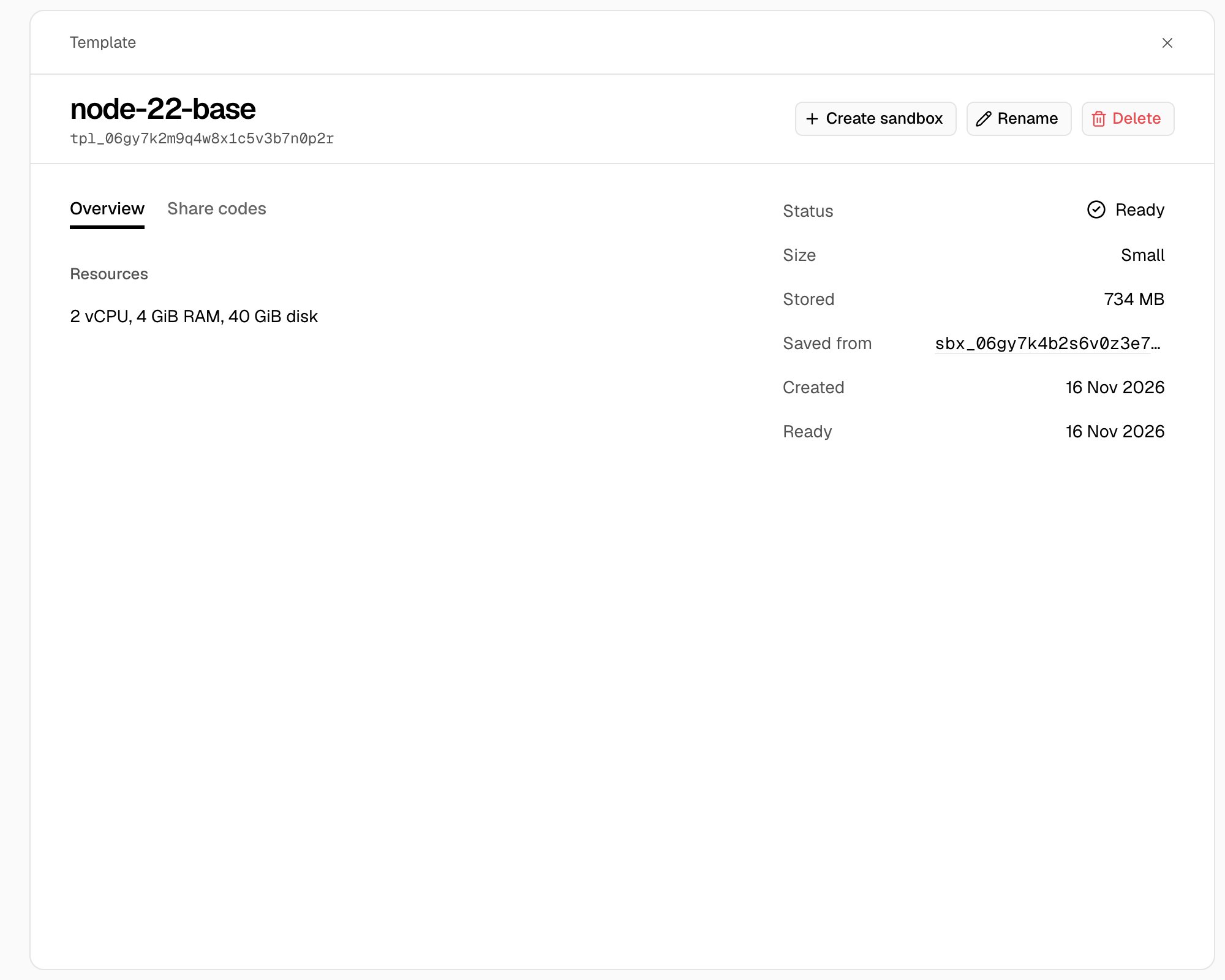
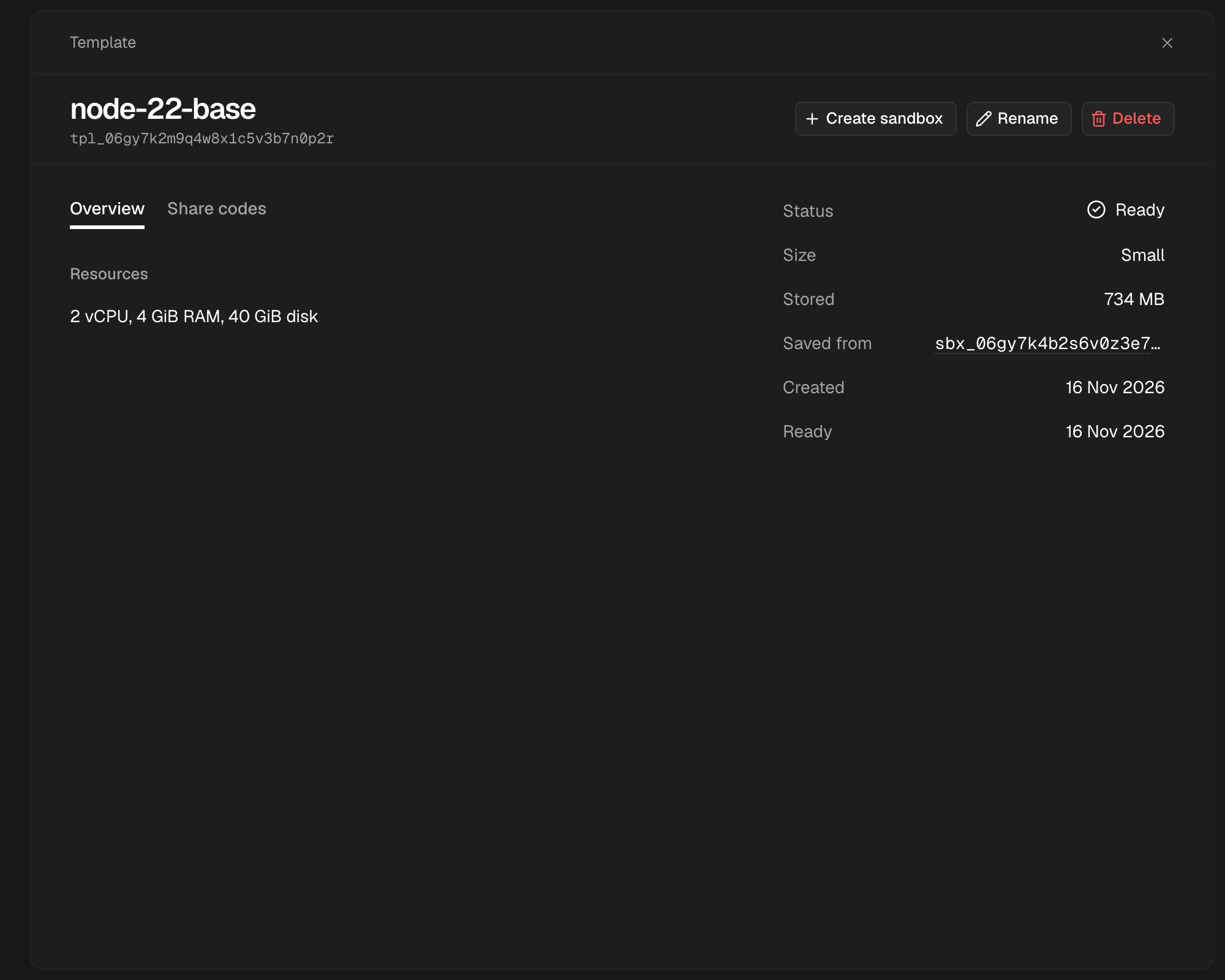
Choose the row of the template, or open its menu (…) and choose View details. A wide sheet opens. Its top shows the name and the ID of the template, and the actions: Create sandbox (for a Ready template), Rename, and Delete. On a small screen, the actions are in the menu (…) at the top. The column at the right of the sheet shows the facts of the template. On a small screen, the facts are below the tabs.
The Overview tab shows why a failed save did not complete, and the vCPUs, the RAM, and the disk of the size. A Ready template also has the Share codes tab. See Share a template with another workspace.
The URL holds the open template and its tab. A reload keeps them.
Create a sandbox from a template
- Open the menu (…) of a Ready template and choose Create sandbox. Or open the template and choose Create sandbox.
- Optional: type a Name.
- Choose a Size. The default is the size of the template.
- Choose Create sandbox.
Share a template with another workspace
Open a Ready template and choose the Share codes tab. The tab lists the codes of the template. See Share a template with another workspace.- Optional: type a label, such as the name of the team that gets the code.
- Choose Create code.
- Copy the code. You cannot see it again.
Rename or delete a template
Open the menu (…) of the row, or open the template and use the actions at the top of its sheet:- Choose Rename, type the new name, then choose Save.
- Choose Delete, then Delete template. Sandboxes that started from the template stay. You cannot undo this.
Delete many templates
- Select the checkbox of each template.
- Choose Actions.
- Choose Delete, then confirm.