A workspace pays for one plan. Use Billing to choose a plan, start the trial, see the invoices and the payments, and change the card or the billing info.

Help me choose a plan.

Before you start

  • You need the Owner or Admin role to choose a plan, start the trial, or open the billing portal. Each member can see the plan, the billing info, the cards, the invoices, and the charges. See roles.
  • Members are free. The plan price does not change when you add members.
  • Have a card ready. The trial also needs a card.

What the Billing page shows

To open the page, choose Settings in the rail, then Billing. The page has these cards, from top to bottom: Payment methods, Invoices, and Charges read Stripe again when you come back to the tab.
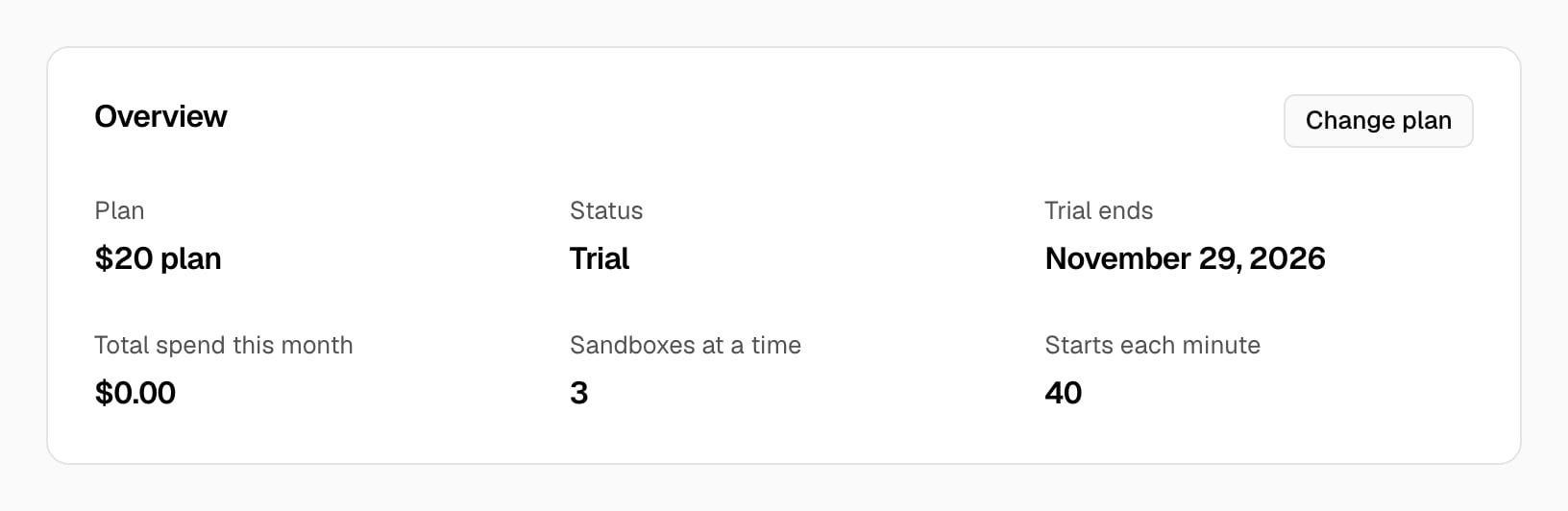
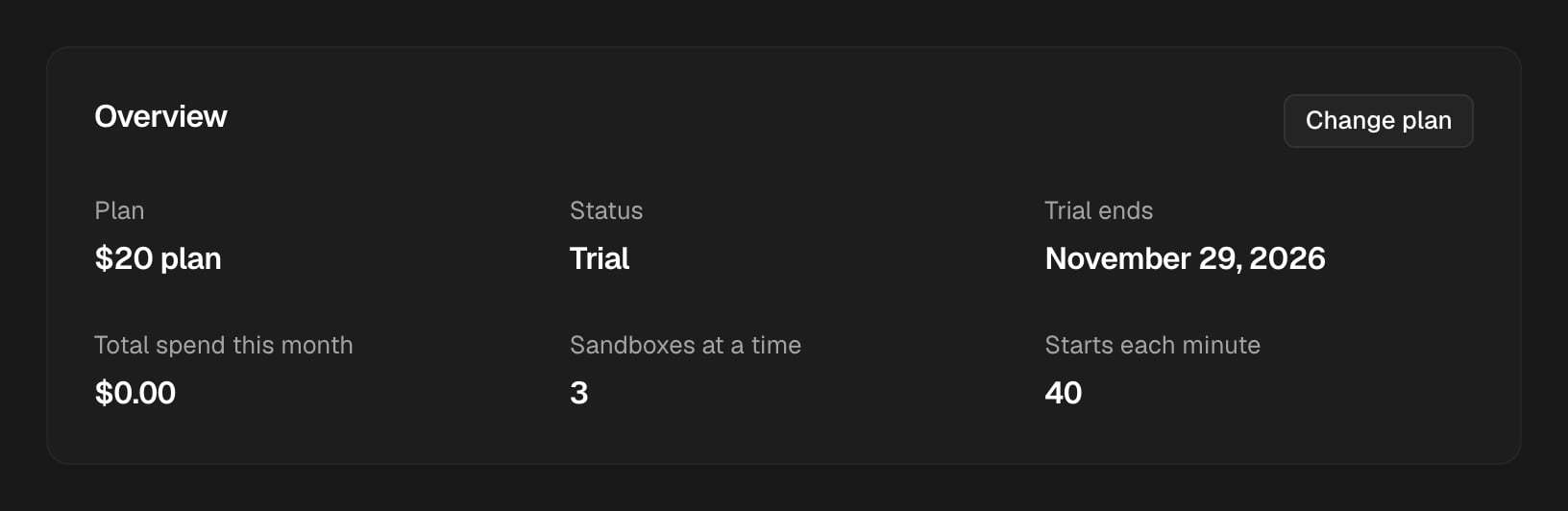
The Overview card with the $20 plan in trial, the trial end date, the spend this month, the limits, and the Change plan button.The Overview card with the $20 plan in trial, the trial end date, the spend this month, the limits, and the Change plan button.
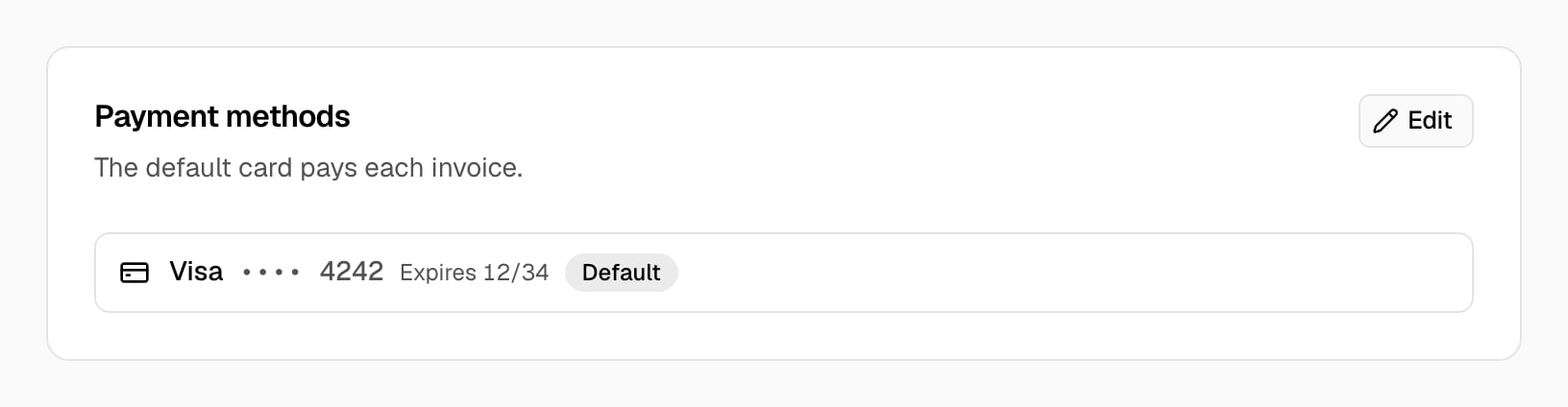
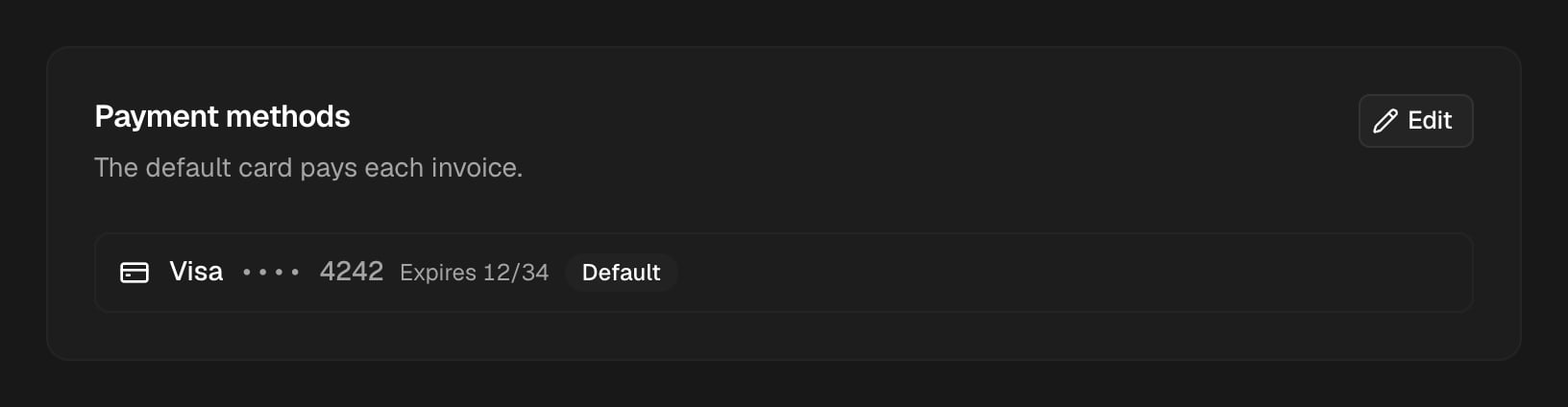
The Payment methods card with one Visa card that ends in 4242, marked Default, and the Edit button.The Payment methods card with one Visa card that ends in 4242, marked Default, and the Edit button.

Start the trial

  1. In the rail, choose Settings, then Billing.
  2. In Overview, choose Choose a plan, then 14-day trial.
  3. On the Stripe page, enter your card and confirm. Stripe shows your email. You can add a tax ID, such as a VAT number, for your invoices. Stripe sends you back to Billing.
Overview shows **$20 plan**, the status **Trial**, and the date when the trial ends. At that date, the $20 plan starts and Stripe charges the card. To stop before that date, cancel in the billing portal. Each workspace gets one trial. Each owner also gets one trial, also in a different workspace. See the trial limits.

Choose a plan

  1. In the rail, choose Settings, then Billing.
  2. In Overview, choose Choose a plan, then the plan.
  3. On the Stripe page, enter your card and confirm. Stripe sends you back to Billing.
Overview shows the plan, the date when it renews, and its main limits. See the limits of each plan.

Change the plan

  1. In the rail, choose Settings, then Billing.
  2. In Overview, choose Change plan. The Stripe billing portal opens on the list of plans.
  3. Choose the new plan, and confirm. Stripe sends you back to Billing.
Overview shows the new plan and its limits. A change during the trial ends the trial, and Stripe charges the card for the new plan. To cancel the plan, choose Edit in Billing info or Payment methods, and cancel in the billing portal. A canceled plan stays until the end of the month that you paid for. Overview shows the date when it ends.

Change the plan, the card, or the billing email

  1. In the rail, choose Settings, then Billing.
  2. To change the name, the email, the phone, or the address, choose Edit in Billing info. To add a card or change the default card, choose Edit in Payment methods. The Stripe billing portal opens.
  3. Make the change.
  4. Choose the return link to go back to Billing. The cards show the change.

Download an invoice

  1. In the rail, choose Settings, then Billing.
  2. In Invoices, find the invoice. You can search, sort each column, and go to the next page.
  3. Choose the actions button at the end of the row, then Download PDF.
The type of an invoice is Plan for the monthly plan fee, or One-time for a different payment. Invoices shows the 100 newest invoices. To see older invoices, open the billing portal.

See the payments

Charges shows each payment attempt on your cards, newest first. The status is Paid, Pending, Failed, or Refunded. To open the receipt of a payment, choose the actions button at the end of the row, then View receipt. Charges shows the 100 newest payments.

If a payment fails

Overview shows Past due and The last payment failed. Update your card. Choose Edit in Payment methods, and add a different card. Stripe tries the payment again. Charges shows the failed payment. If a payment has a dispute or a fraud warning, Billing shows that the payment needs a check. New sandboxes cannot start until the check is done.