

Help me add a member.
Before you start
You need the Owner or Admin role to invite, change, or remove members. Only an owner can give the Owner role. See roles.Invite a member
1
Open Members
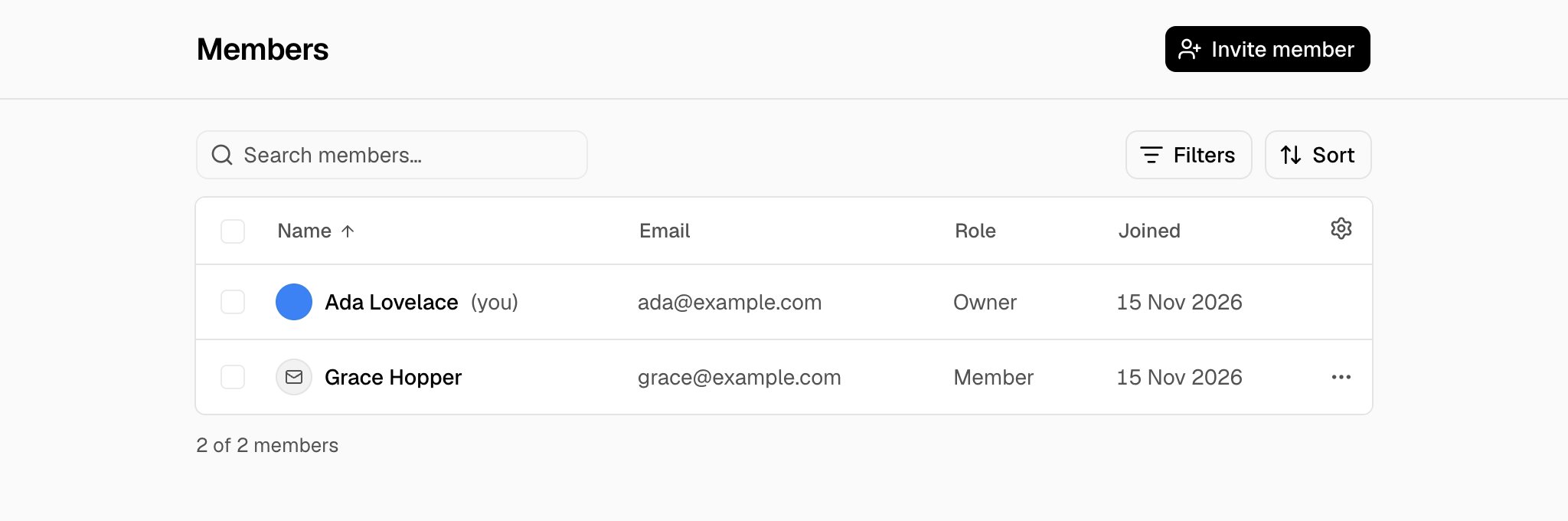
In the rail, choose Settings, then Members.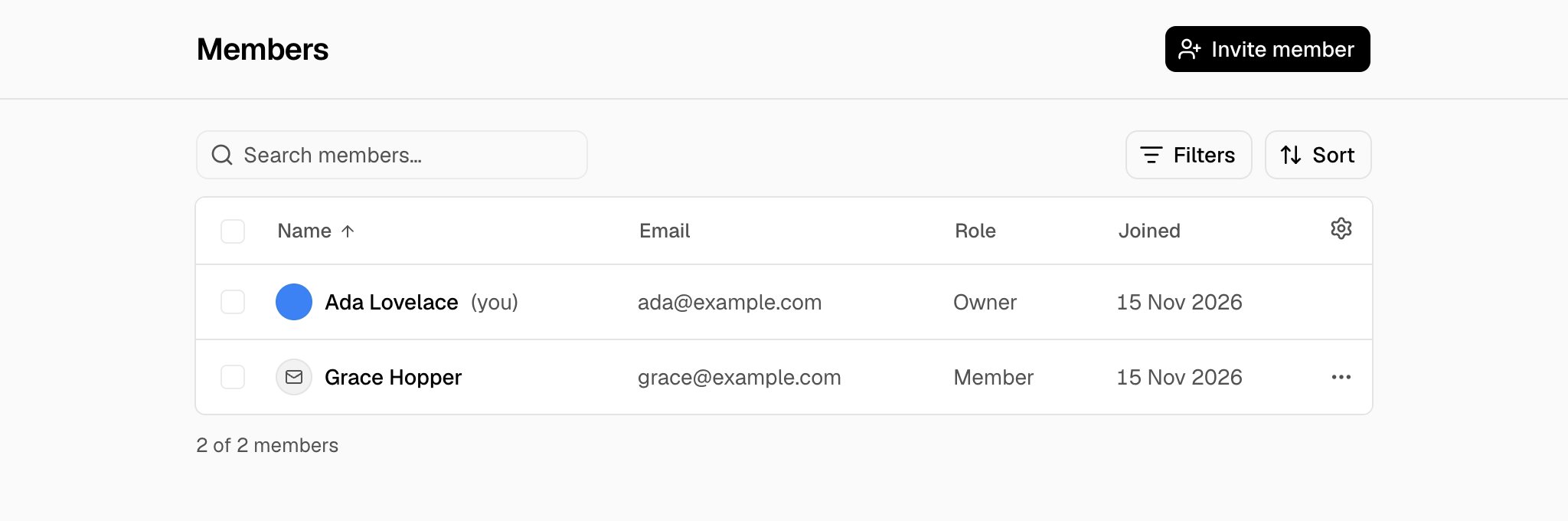
2
Send the invitation
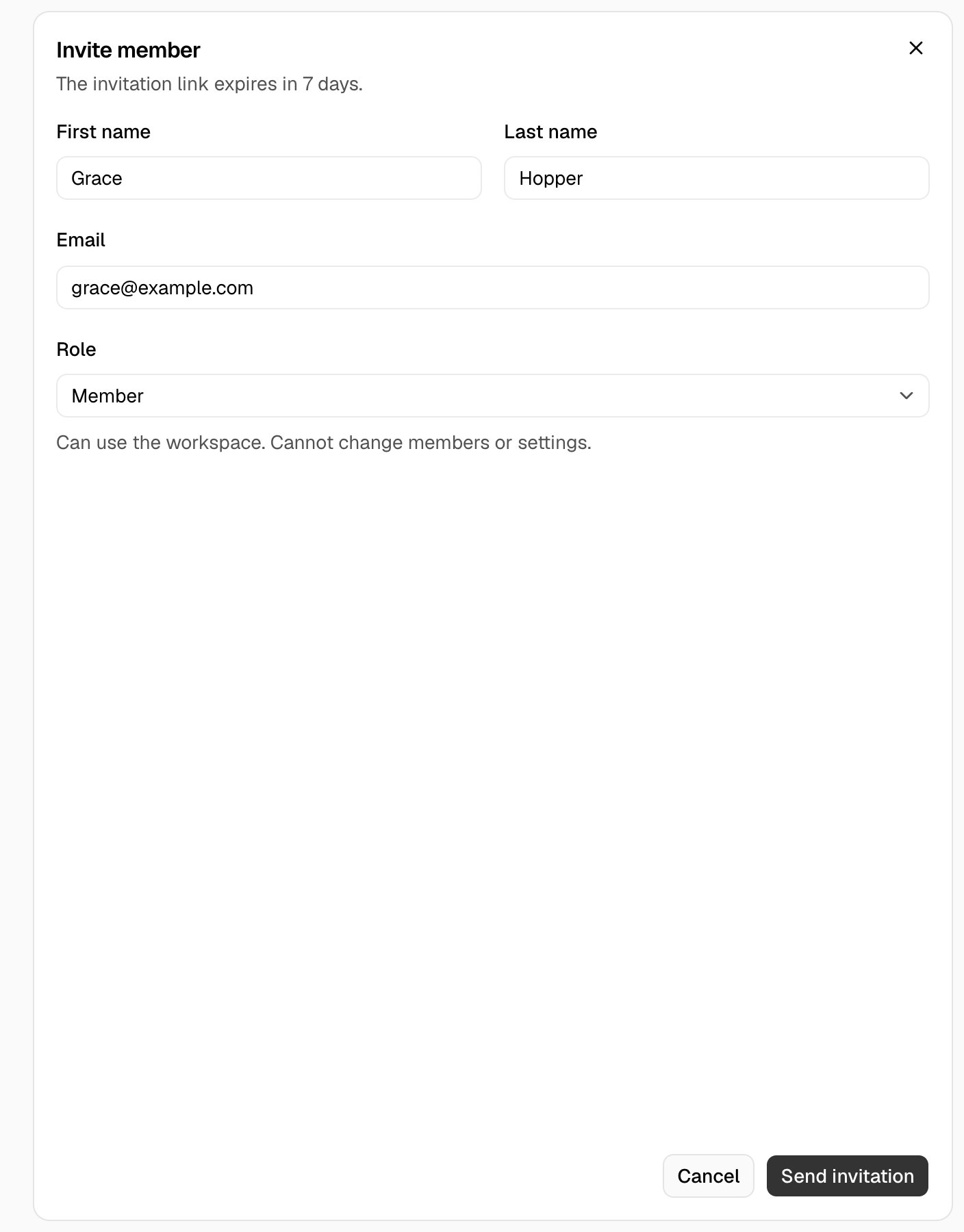
Choose Invite member. Type the First name, the Last name, and the Email. Choose a Role, then choose Send invitation.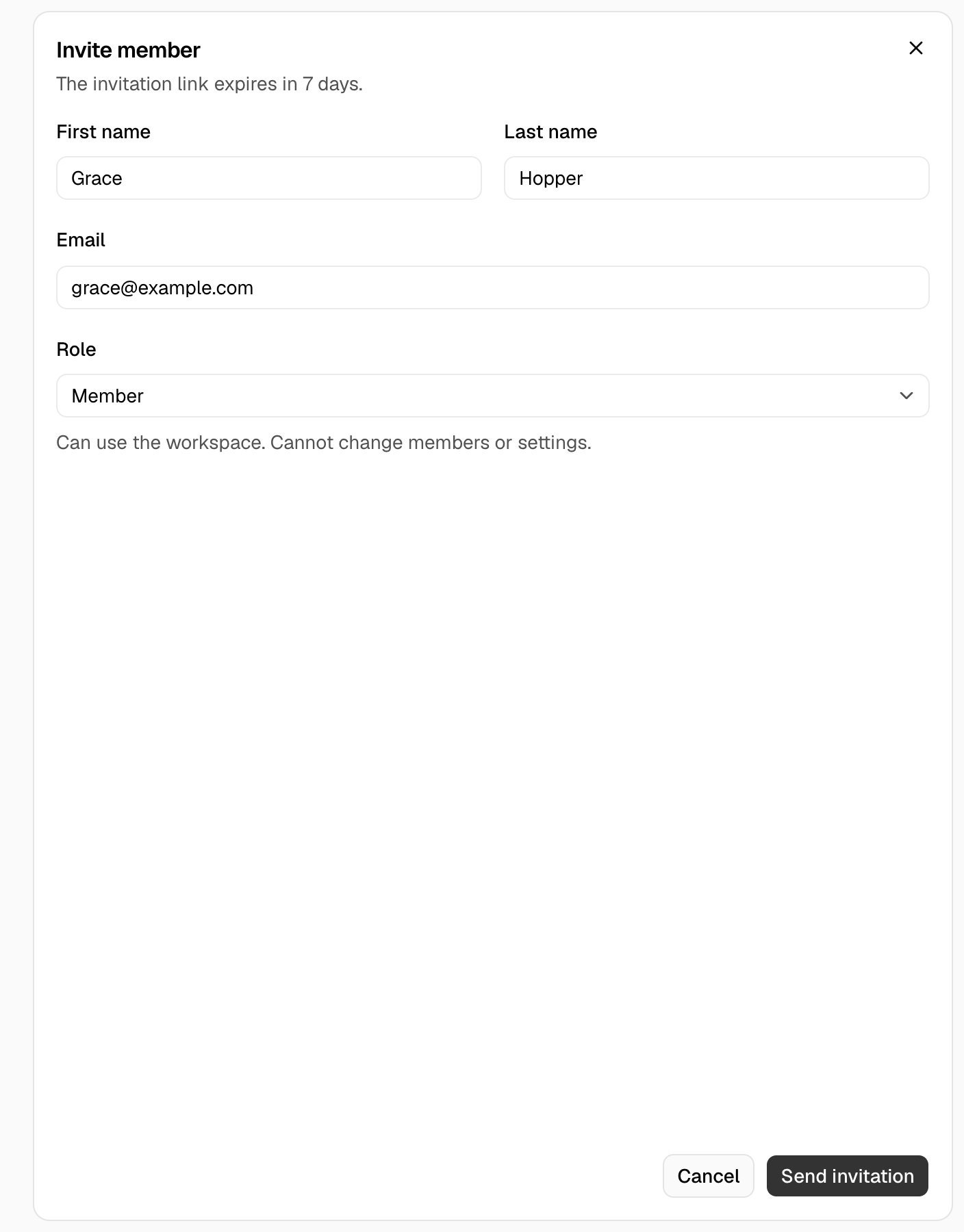
Change an invitation or a member
Open the menu (…) of a row:
To change more than one row, select the check box of each row, then choose Actions. You cannot change your own row.
Troubleshooting
You do not have permission to invite people.
You do not have permission to invite people.
You have the Member role. Ask an owner or an admin to invite the person.
You do not have permission to change this member.
You do not have permission to change this member.
An admin cannot change or remove an owner. Ask an owner.